
The Reconcile tab is where you match your company’s cash records (general ledger) against the bank statement to verify that all deposits and payments match.
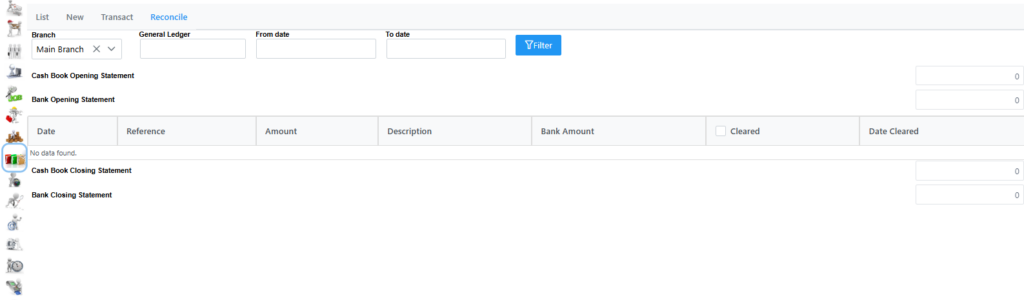
To Reconcile, select correct Branch if more than one, in the General Ledger field input “bank” to select it from the list, or “Cash” to select Petty Cash, however they are set up in your system, the From date will always be set to the last time a reconciliation was run, select your To date and click filter. Results will display as in following page.

As you can see the results returned is 2535 in our case. Yours will be different obviously. Trying to reconcile so many at once will result in a time out. Adjust the To Date and filter until you only have 1000 more or less at a time. The Cash Book Closing Statement amount will be displayed on the bottom left of your screen. You can then click the Cleared Tick box to highlight them all. At the bottom of the screen you will then see the if the Cash Book Closing Statement and Bank Closing Statement amounts align. If they do you can go ahead and click Save. It can take up to 3 minutes to reconcile all selected items. A message will be displayed once successful.
If the Cash Book Closing Statement and Bank Closing Statement amounts do not align, you can select a smaller date to filter on to find the transaction causing the out of balance where you can then do a journal entry to resolve.