
By selecting Point-Of-Sale you will see the following screen.
Choose a Dispatch Branch and Debtor, and then you can add stock to the order by clicking on the stock item. You can filter stock by picking a Brand and/or Stock category, or by searching for the stock under Stock.
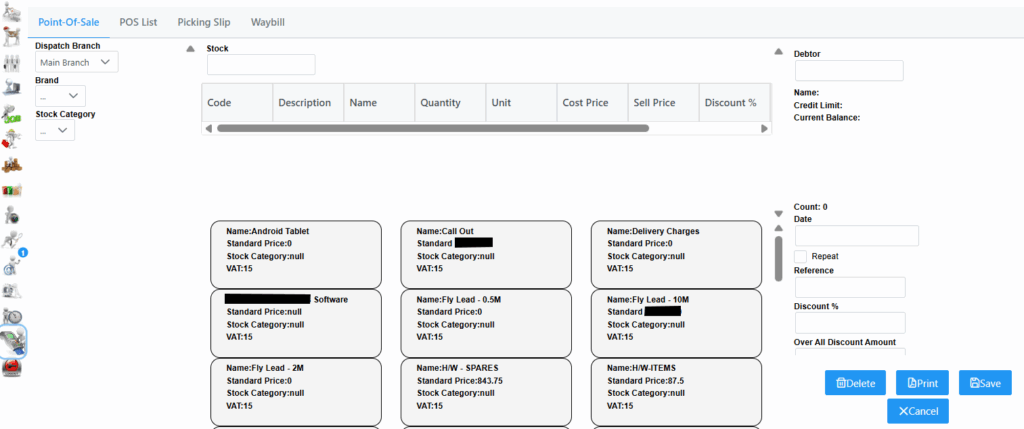
If a stock item gets added and needs to be removed, make the Quantity 0 and press [Tab].
To setup a Monthly invoice, set the date for when it should repeat, normally 1st of every month, click the Repeat tick box which will keep a proforma invoice for future reference, give it a Reference of monthly for example. Click Save to save it in the POS List.
Once all stock has been added to the order list you can click on Calculator.
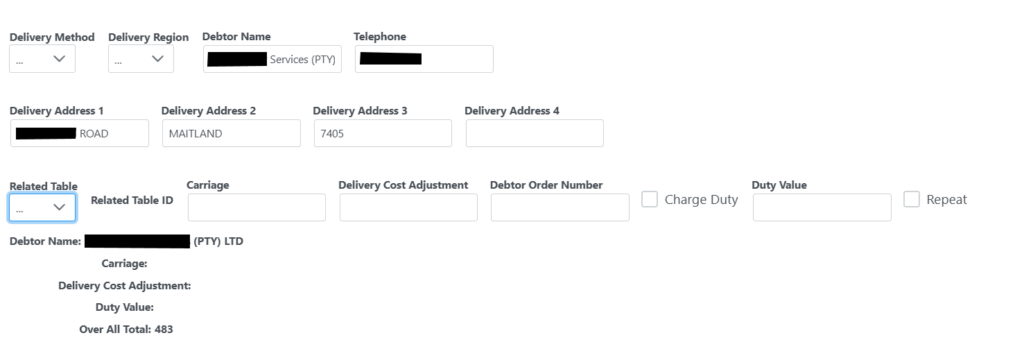
Here you can choose the Delivery Method and Delivery Region. Fill in all information necessary. The Related Table will be prepopulated if invoice is linked to a Job Card or Servicedesk Call. The Carriage cost will always be automatically calculated based on what you have set up for your company. To change this you change the Delivery Cost Adjustment. Once you’re happy, you can press the Save button in the bottom right corner. A description will automatically be generated, but this can be edited.
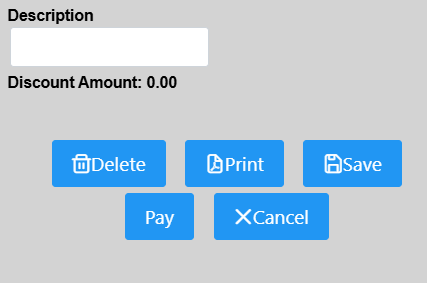
Delete will delete the POS transaction.
Print will print a Proforma Invoice.
Save will save the Proforma Invoice. It can then be closed and can be viewed/edited/used at a later stage from the POS List.
Pay brings up the payment options and details.
Cancel will close the Proforma Invoice without saving anything new. The last saved point will be what come up when the Proforma Invoice is next opened.
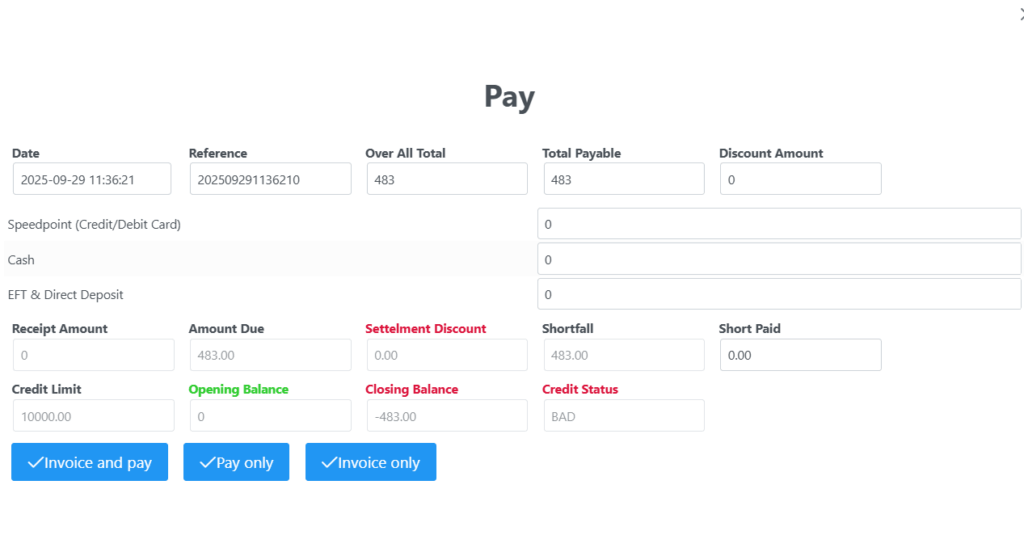
The payment options are:
Invoice and pay – allows you to pay and get an invoice. You cannot choose Invoice and pay if the Amount Due is not 0 and the Credit Status is not OK. Once paid and invoiced the order will no longer show in the POS List.
Pay only – Always available. Allows payment towards an order without completing the transaction. The order will still show in the POS List until it has been invoiced and paid.
Invoice only – Can only be used if there are no numbers in any of the payments options (Speedpoint, Cash, etc.) or in Short Paid AND the Credit Status is OK.