
You can only Transact if you have user access Stock Issues in the Source Branch and Stock Receipts in the Destination Branch. When selecting Transact, you have 2 choices.
Transfer gives you the ability to move stock from one branch to another. By filling in first few characters in the stock tab, it will bring up a list where item can be selected. You will need to select the Source (branch the stock is coming from) and Destination (branch the stock is going to), choose the date for the transaction, and a reference (default is current date).
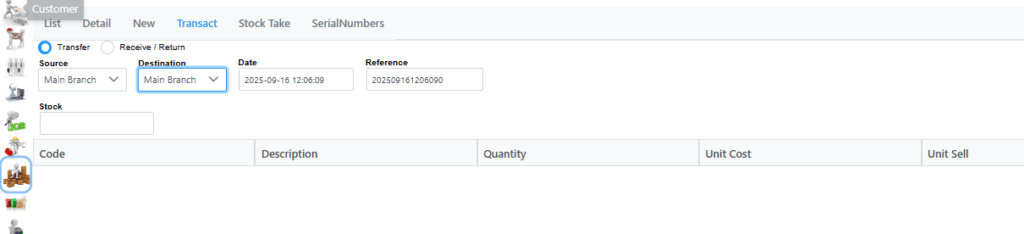
You can then add stock by searching for it in the stock search bar. The stock code needs to be a valid stock code at both branches for it to be transferred between branches. When you click on an item it will be added to the transaction list. You can then change the quantity of items being transferred. If you need to remove an item that has been added, set the quantity to 0 (zero). Unit Cost and Unit Sell are shown for each item. Unit Cost are automatically calculated based on previous transactions of the stock item. If no Unit Cost is displayed it can be manually edited. Unit Sell is automatically calculated as standard price. At the bottom of the list it shows Total Unit Cost, Total Unit Sell and Total Count.
Once you’re happy with your list and quantities you can click Submit. A confirmation tick will show in the top right corner and the Transact tab will be cleared.
Selecting Receive / Return gives you ability to Receive or Return stock
