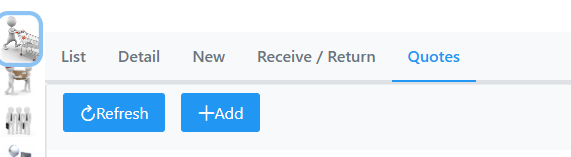
Quotes gives you the ability to quote a customer, or Refresh to list current quotes.
By selecting Add, the following screen will appear.
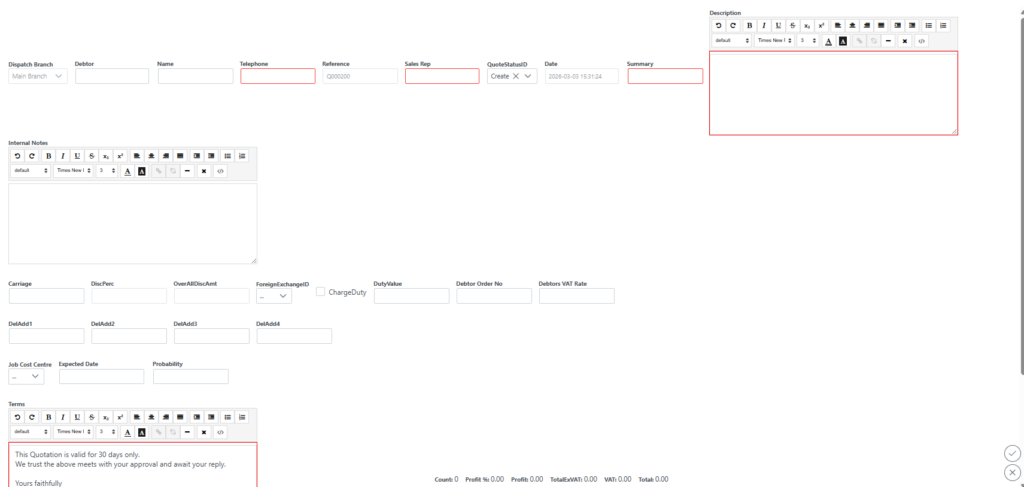
Start with the Debtor field.
Type first couple of characters to bring up a list of debtors to chose from.
When debtor is selected, the name telephone and sales rep fields will auto populate if the details have previously been captured.
Capture your Summary, Description and other fields which will apply to the quote.
When clicking the Add button the following page will appear where you must select and add the items to the quote.
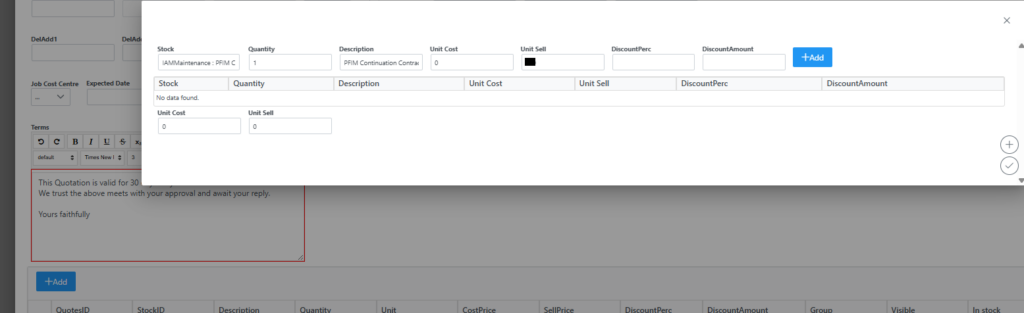
By typing first few characters in the Stock field, it will bring up a list to choose from.
Select stock item accordingly and specify the quantity, Description can be changed, input Unit Cost if costing has not been applied to item, input Unit Sell price, input DiscountPerc for discount percentage or DiscountAmount to apply discount if any and click the Add button.
Add more items by following the same procedure.
Click the submit button bottom right corner to save items to quote once all items have been added.
Click submit again to create the quote.
On the Main tab, click refresh to update the list of quotes. You will see the newly created quote which you can open by selecting it.
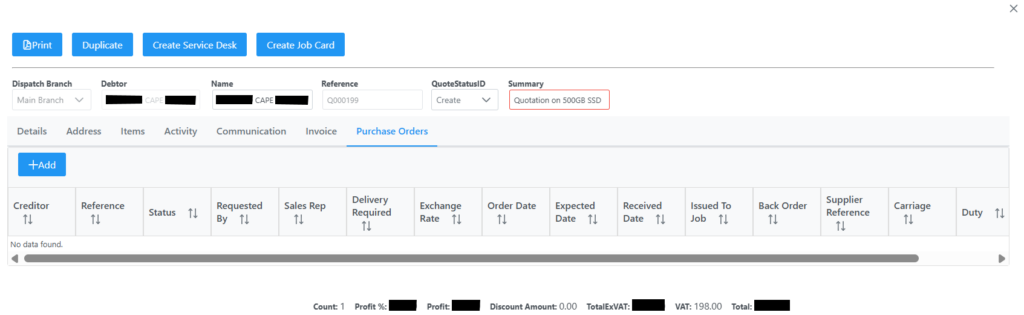
On opening the quote a new set of tabs will be available as in the following screen.
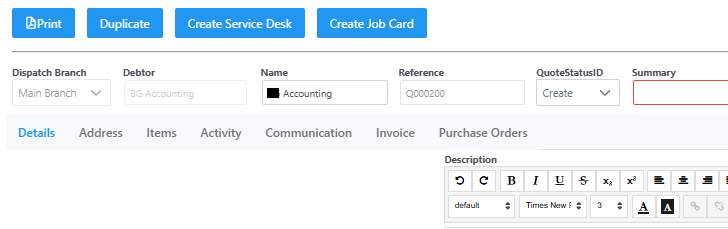
To start, you have the ability to Print, Duplicate, Create Service Desk call or Create Job Card from the quote.
Duplicate opens a new duplicate of the original quote where you are able to add items, or even change the Debtors, very handy when dealing with multiple quotes having similar stock items.
Create Service Desk creates a service desk call linked to the quote after you have filled in the details. This is to ensure that all requests are logged, prioritized, assigned, and tracked through to resolution.
Create Job Card will bring up a new Job Card screen you need to fill in accordingly. Create a Job Card from a Quote to convert approved work into an actionable job while retaining all quoted details and costs.
Once submitted a job card will be created linked to the quote where more details can be captured. See the Job Card section for more details.
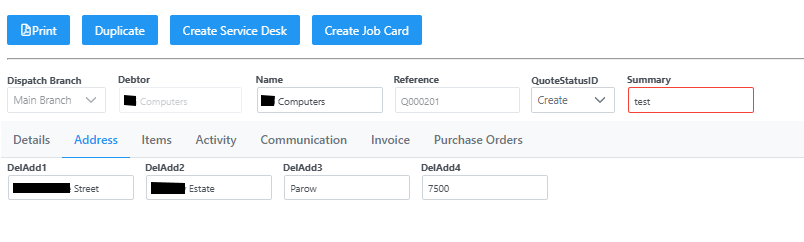
Selecting the Address tab shows the following screen with prepopulated data if it has been previously captured, if not you can add an address.
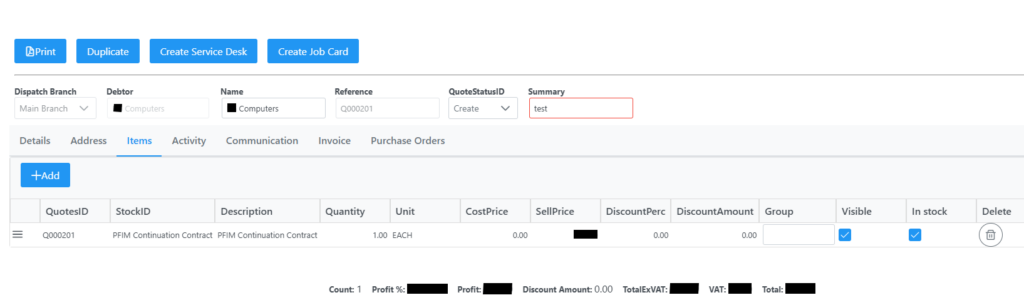
On selecting the Items tab, the following screen will open where you can view, add, delete or make changes to the items.
After changes are made click the save button.
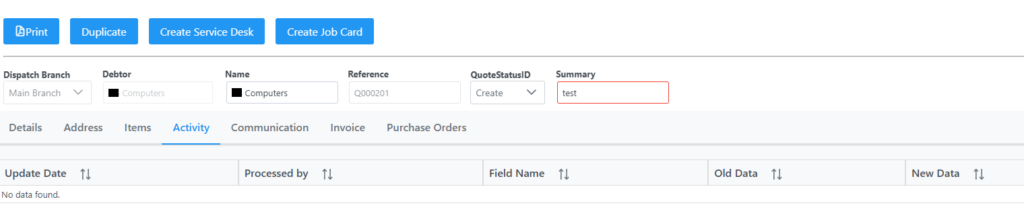
Selecting the Activity tab shows the following screen listing all activity related to the quote if you have been granted access.
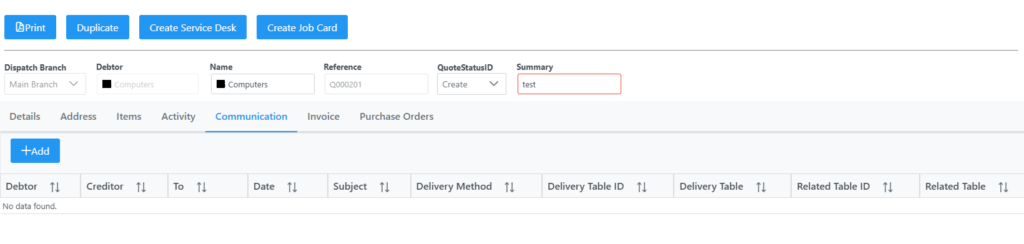
Selecting the Communication tab shows the following screen listing all communication related to the quote, or Add communication as per Communication New section.
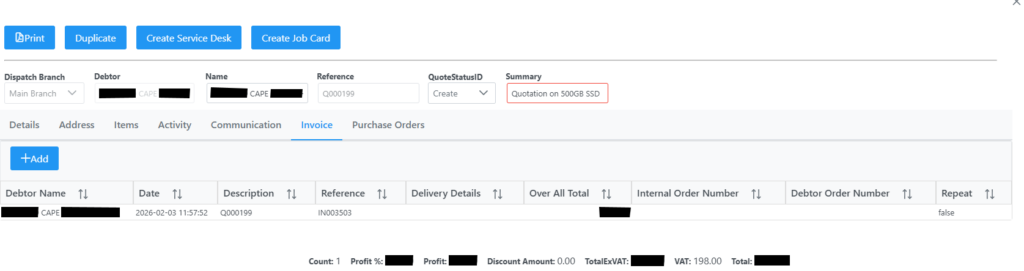
Selecting Invoice tab shows the following screen where you can view invoices related to the quote if any, or Add a new invoice from quote which will take you to the point of sale screen. See Point of Sale Section for more details.
Selecting the Purchase Orders tab shows the following screen where you can view purchase orders related to the quote if any or add a Purchase Order. See the Creditors Purchase Orders section for more details on Purchase Orders.