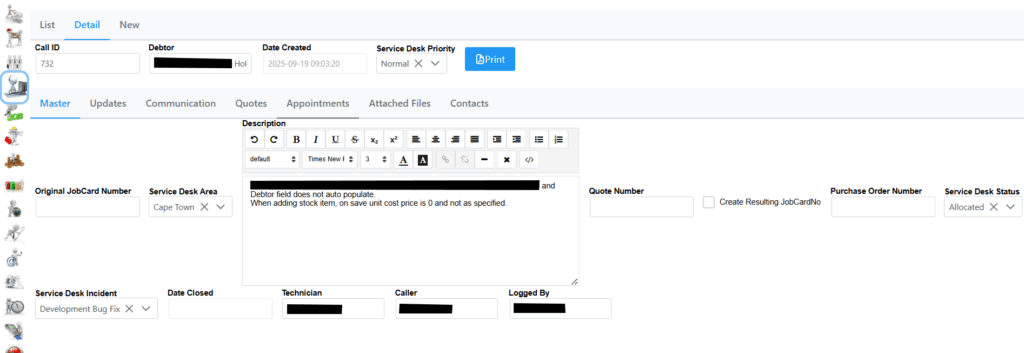
Selecting a ServiceDesk Call shows the following details.
In the Master tab you will see all information related to the call and can be updated accordingly.
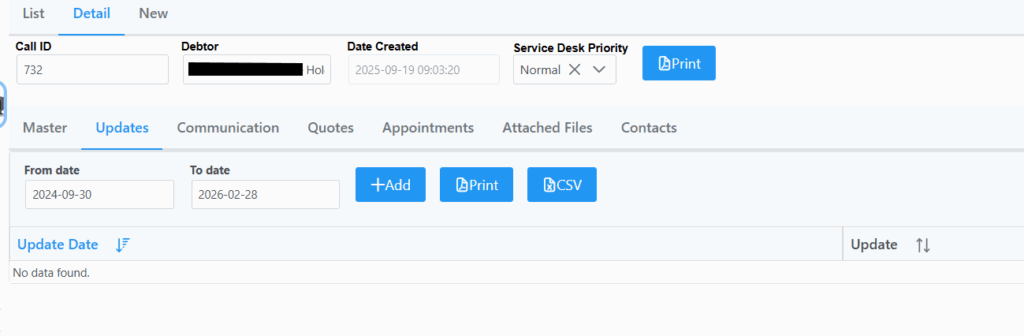
On selecting the Updates tab, you will see all updates which transpired on the call. You also have the abillity to Add an update, Print the list of updates, or export to CSV.
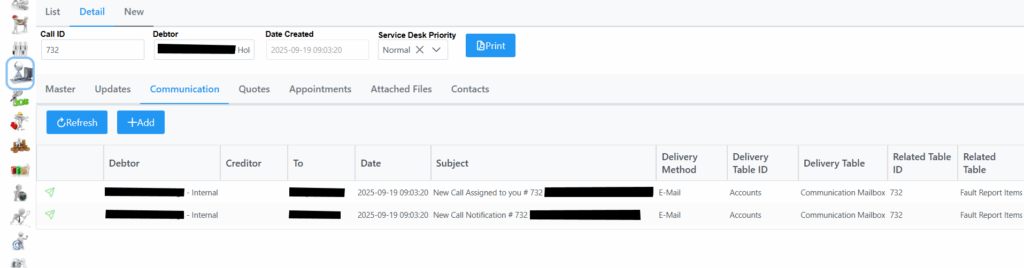
On selecting the Communication tab, the following screen which shows all Call related communication such as email or sms being sent out is visible.
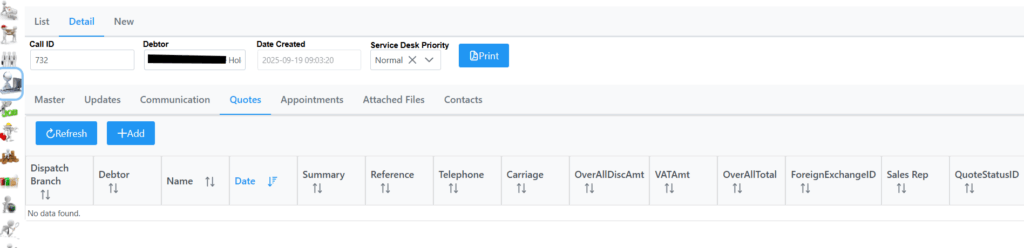
On selecting Quotes, the following screen listing any quotes linked to the call is displayed, or have the ability to Add a new quote as explained in the Quote section.
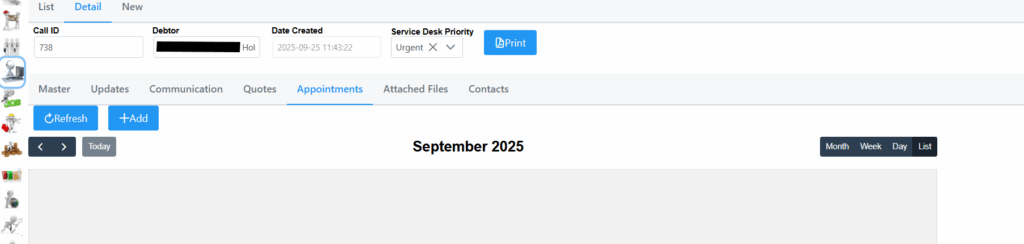
On selecting the Appointments tab, you will see the following screen. Any appointments scheduled on this call will be displayed.
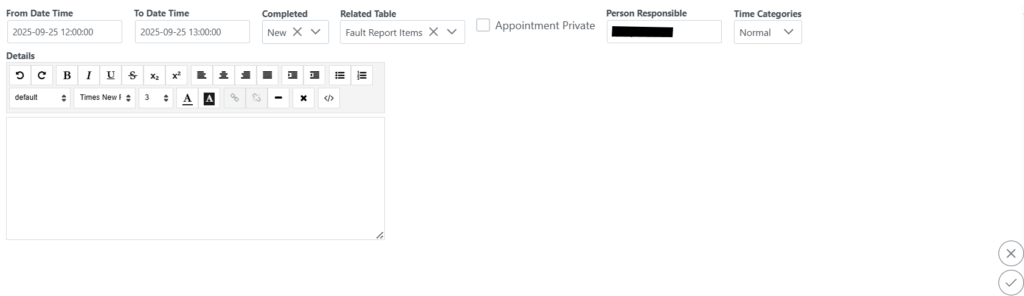
You can add an appointment by selecting the Add button. The following screen will be displayed where you can add the from and to date and time, and all relevant details. Remember to click submit in the bottom right corner.
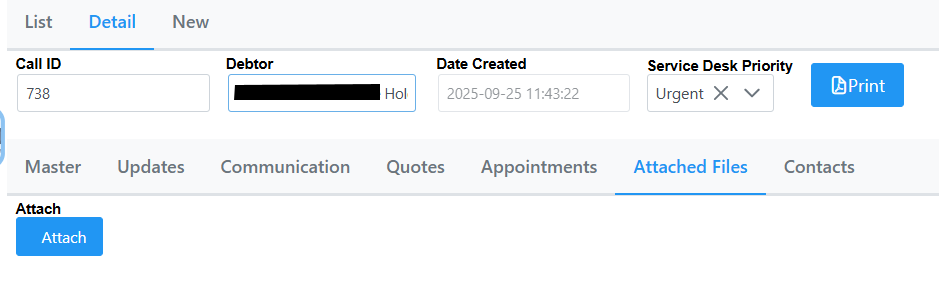
On selecting Attached Files, the following screen is shown where you can view any attached files related to the call, or add an attachment.
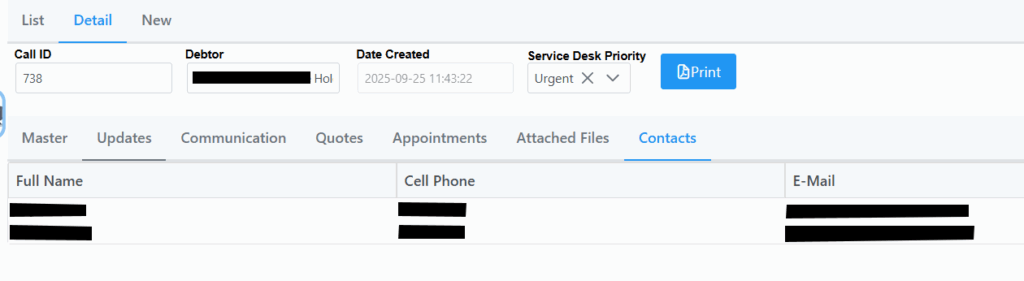
On selecting the Contacts tab, the following screen is displayed showing all contacts linked to the current call.