
Bank upload allows you to upload receipts and payment from the bank statement into your general ledger in PFIM.
From your bank statement download create 2 csv files , 1 for receipts and 1 for payments, using the following template:
8 columns to contain the following (no heading row – just data).
Use the following template where :

Col A = a number for sorting
Col B = Date as yyyy/mm/dd
Col C = Amount (as positive)
Col D = Running total on bank statement (Can be 0.00)
Col E = Description on bank statement
Col F = your General Ledger account number
Col G = your customer account number
Col H = Internal Reference
To upload this into PFIM:
Open GENERAL LEDGER
To process receipts click on Receipts or to process payments click on Payments.
in the bottom right corner click on this icon:

Then this window will display
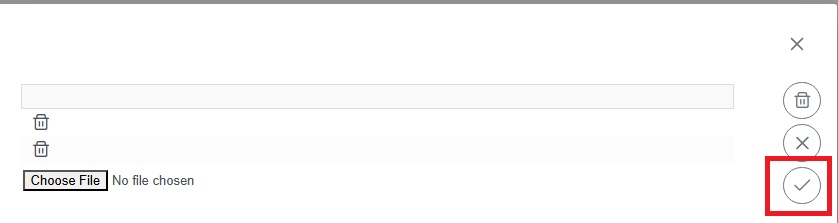
Choose the file to upload and click on the icon in red block.
The uploaded data then appears:
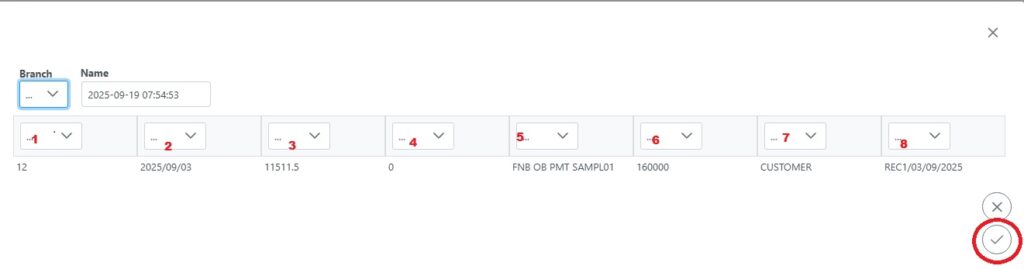
click on the drop down and select the fields the data must be written to:
Select the BRANCH into which you want to process.
1 Can be ignored
2 Date
3 If this is a receipts upload select CREDIT. If it is a payments upload select DEBIT
4 Ignore
5 Description
6 Your General Ledger Account
7 Your Customer account
8 Reference
Once done click on the Tick as identified in the red circle above.
You will now see your list of transactions at the top.
If the other side of these transactions is a bank, you can click on the tick box AUTOMATICALLY CREATE BANK ROW. It will set the bank to your default bank which can be changed at this time if working with a different bank. Selecting the row from the uploaded list above, it will automatically add it if all data is correct. If any data is incorrect it will be added to the edit form. After editing it click +ADD icon and the double entry is created.
Click on SUBMIT.