Once item is selected, it will jump to the detail page where more information and details can be captured or updated. You will also see different tabs depending on your user access.
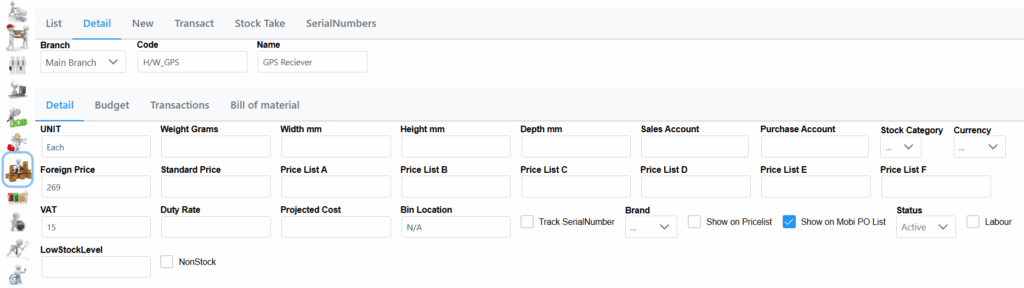
In the Detail tab you will also find a couple check boxes:
Show on Pricelist check box: If this is checked on, the item will be shown on the Point-Of-Sale.
Track SerialNumber check box: When this is checked on, it enables that unit to be picked by technicians as an item that can have serial number.
Show on Mobi PO List check box: When this is checked on, it allows technicians to be able to request that product for a job.
Labour check box: If checked on, only users with access can view the costing of this product.
At the very bottom of this tab you can also find a history of purchase and sales of the product within a selected time period.
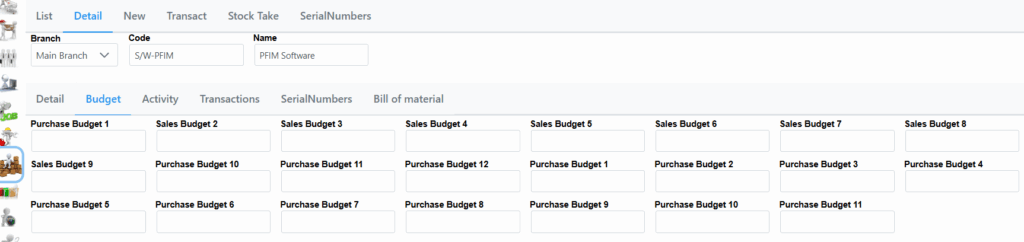
When selecting the Budget tab, you will see all Budget related details.
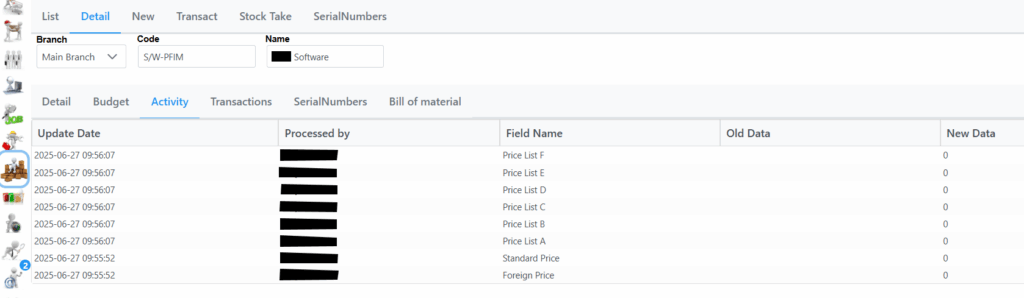
On selecting the Activity tab, you will see all activity related to the item ie updates and changes, the dates and by whom.
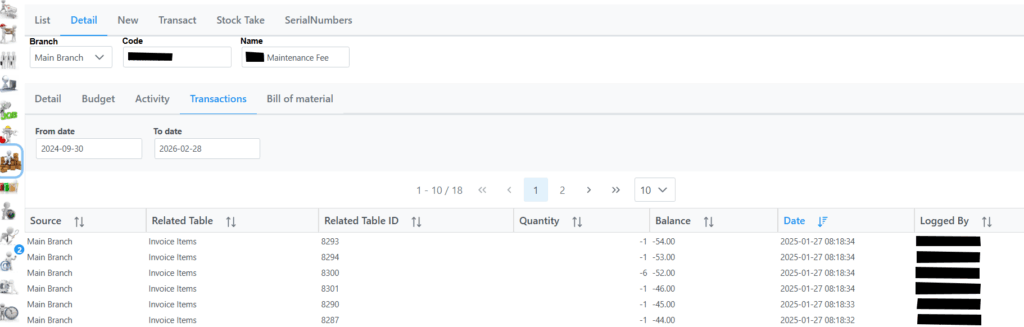
Selecting the Transactions tab will show transactions related to the stock item. You can also right click an item to print a more detailed audit log.
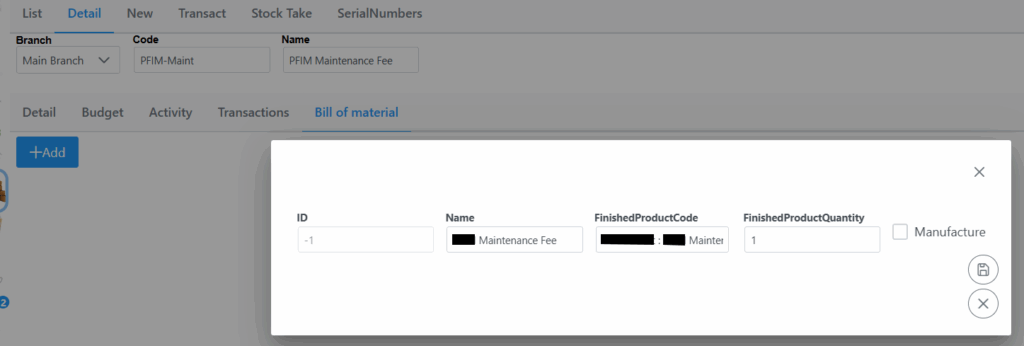
When selecting the Bill of material tab, you will see the following screen where you can add an item accordingly. Remember to click Save.